Why does Google require Business Profile verification?
Google requires verification so it can confirm that the person editing the profile is authorised to represent the business and that the business information is accurate enough to show on Search and Maps.
Google’s verification help says you need to verify the business to edit details such as the name or hours and to interact with customers. After verification, you gain ownership of the Business Profile. Source: Verify your business on Google.
Verification is not a ranking purchase and it is not a suspension appeal. An unverified profile and a suspended Business Profile are different problems. If the listing is already disabled, follow the suspension process rather than treating this as a failed video upload. A tenant inside a shopping centre still has to be independently eligible and may need extra location context; that setup is in Business Profile setup inside a shopping centre.
Why might verification fail?
Verification can fail when the method Google offered was not completed, the evidence did not match the profile, or Google could not confirm the location, the operating business or the person managing it.
Common causes include a video that skips the street, a name on screen that does not match the profile, a recording made outside the Business Profile app, a phone number that only reaches an IVR, an email the owner cannot open, or a postcard code that expired after the name or address was edited. Google also says verification methods are automatically determined and cannot be changed, and that some businesses must complete more than one method. Source: Verify your business on Google.
A failed attempt is not proof that the business is ineligible. Eligibility is a separate question: customers visit a staffed location, or the business travels to customers. Online-only operations without in-person service cannot have a Business Profile. That rule is in Guidelines for representing your business on Google and is restated on the video help page.
What does Google need to verify?
Google needs evidence that the business exists at the claimed place, that it operates as described, and that the person completing verification manages or represents it.
Those three groups appear in both video recording help and live video-call help. Location evidence can include street signs, building numbers, nearby businesses or familiar landmarks. Operation evidence can include a storefront, tools, products or branded equipment. Management evidence can include staff-only areas, a cash register, storage, keys to a branded vehicle, or documents that match the profile name. Source: Verify your business with a video recording.
Location
Show where the business is Street signs, building numbers, nearby landmarks and permanent signage should match the claimed address.Business operation
Show that a real business operates there A storefront, workspace, tools or branded equipment should appear. The name in the video must match the profile.Management
Show that you manage or represent it Staff-only areas, a point of sale, a branded vehicle or matching documents can help. Do not show bank, tax or ID numbers.Method
Record live in the Business Profile Pre-recorded or edited videos are not accepted. Google chooses the available verification method.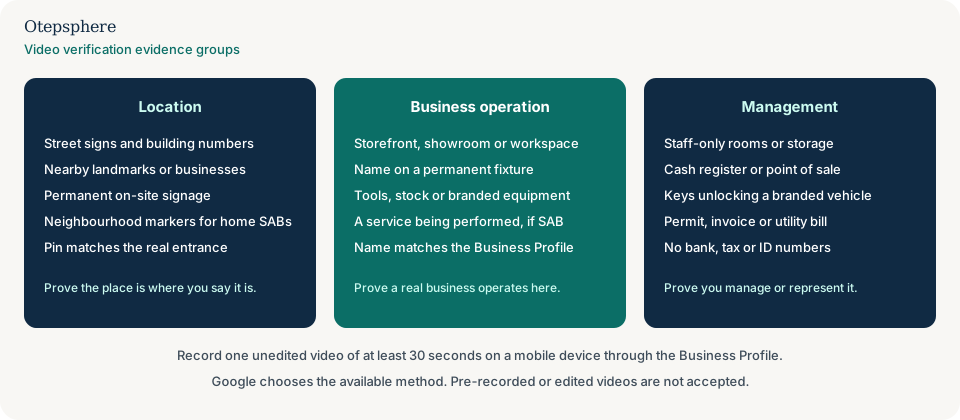
How does video verification work?
Video verification asks you to record and upload one continuous video through the Business Profile on a mobile device so Google can review the location, the operating business and your authority to manage it.
Google says the video must be an unedited, unique, complete recording with no breaks, at least 30 seconds long, and recorded and uploaded from a mobile device through the Business Profile. You cannot record offline and upload later. Review can take up to 5 business days. If the video is not accepted, Google shares the reasons and you can record a new one. Source: Verify your business with a video recording.
If video is offered, Google recommends using it. Other methods may still appear: phone or SMS, email, a live video call during business hours, or a postcard. Instant verification can happen when the same Google Account has already verified the website in Search Console, or when bulk verification applies. None of those options is a menu you choose freely.
What should a storefront show in a verification video?
A storefront or hybrid business should show the street and building, permanent signage with the same name as the profile, and staff-only proof that you manage the location.
Google defines a storefront as a business that meets customers in person during business hours at a physical location with permanent on-site signage. A hybrid business serves customers there and also visits or delivers to them. If there is no permanent signage, Google says to list the business as a service-area business instead. The video must include:
- Location: street signs, building numbers, nearby businesses or familiar places around the business.
- Existence: the storefront, showroom or signage, with the name clearly printed on a permanent fixture.
- Management: things only an employee can access, such as a cash register, kitchen, storage room or point of sale.
The name shown in the video must match the name on the Business Profile. Temporary posters, a laptop on a borrowed desk, or a sign held in someone’s hands are weak substitutes for permanent signage. Setup for travelling trades is covered in Google Business Profile for service-area businesses.
What should a service-area business show?
A service-area business should show neighbourhood markers at the operating address, the tools or branded assets used for work, and proof that the person recording manages the business.
Google’s SAB video rules ask for street signs, nearby landmarks or other identifiers at the business address, and say to avoid filming empty land or locations without clear markers. A home-based SAB can record landmarks and signs in the immediate neighbourhood. Operation evidence can include specialised tools, a workspace, business cards or branded apparel. Management evidence can include performing a service, unlocking a branded van, or showing a permit, invoice or utility bill that matches the profile name. Source: Verify your business with a video recording.
Do not add a public shopfront address if customers do not visit. That mismatch is a common reason later verification or suspension problems appear.
What proves that you manage the business?
Management is shown by access that a passer-by would not have: opening staff-only areas, using the point of sale, unlocking branded equipment, or presenting documents that match the profile name.
Live video-call help gives the same examples: employee-only areas, a cash register, kitchen, storage room, non-sensitive business documents, or keys that open the facility. SAB help adds performing a service and unlocking a branded van. Documents should match the name on the profile. Do not invent a storefront or alter paperwork to force a match.
Why are pre-recorded or edited videos a problem?
Pre-recorded or edited videos are a problem because Google requires the footage to be captured live in the Business Profile and does not allow offline recordings or later uploads.
Cuts, voice-overs, title cards and spliced clips also break the “unedited, unique and complete” rule. If the first take missed the street sign, record the whole video again. Google’s Review issues flow tells you to include everything from the first video plus the missing items.
What should not be shown in the video?
The video must not include sensitive information such as bank account, tax or ID numbers, private information about you or others, or other people’s faces.
That list is Google’s, not an agency preference. Film during a quiet moment if customers would otherwise appear. Cover or avoid documents that show account numbers. Do not add music, watermarks or a sales pitch. The recording is evidence, not marketing.
What if Google asks you to verify again?
If Google asks you to verify again, complete the method shown on the profile. A new Get verified button means Google could not completely verify the business. A Review issues notification after a video means that video was not accepted.
Google also says additional information may be requested after recent business-detail updates. Follow Get Verified and the on-screen steps. If multiple methods appear, you may try another available method. Review after a completed attempt can take up to 5 business days. Source: Verify your business on Google.
Postcard-specific rules still apply when mail is offered: most codes arrive within 14 days, codes expire after 30 days, editing name, address or category invalidates the code, and requesting a new code invalidates the one already mailed. Google says it will never ask for the code, and you should not share it, including with someone who manages the profile.
What if verification keeps failing?
If verification keeps failing, stop repeating the same recording and check whether the profile itself is ineligible, inconsistent or a duplicate of an existing listing.
Compare the profile with the website, signage and how the business actually operates. A keyword-stuffed name, a virtual office used as a storefront, or a second profile for the same location can make any video look unconvincing. Search Maps for the same name and address before you create another listing. Ownership of an existing profile is covered in what to do if you lost access. Duplicate treatment is covered in why a profile is marked as a duplicate.
Google’s video help says to try another available method if you still have trouble, and to contact support if you cannot verify after using the options shown. Support cannot assign a method Google has not offered. Completing the steps does not guarantee approval. Google reviews the evidence.
Google Business Profile Verification Checklist
- Confirm the business is eligible: customers visit, or you travel to them.
- Match the profile name to real-world signage, the website and invoices.
- Use a precise address, or hide the address if you are a service-area business.
- Use only the verification method Google shows. Do not buy a different method.
- For video, plan location, operation and management shots before you tap record.
- Record at least 30 seconds, unedited, on a phone, inside the Business Profile.
- Do not show faces, bank details, tax numbers or ID numbers.
- If Review issues appears, fix every named gap in a new complete recording.
- For phone or SMS, answer the listed number yourself. Do not use IVR.
- For postcard, leave name, address and category unchanged until the code is entered.
- Wait up to 5 business days after you complete the steps.
- Do not create a second profile for the same business.
When professional Local SEO assistance makes sense
Professional help is useful when the profile, website and real-world business disagree, when a duplicate or ownership problem sits underneath the failed attempt, or when repeated videos are rejected for the same eligibility issue. It is not useful as a way to bypass Google’s method or to guarantee verification.
Profile completeness after a successful verification is a different job: Google Business Profile optimisation.
Official Google sources
- Verify your business on Google
- Verify your business with a video recording
- Guidelines for representing your business on Google
- Manage service areas for service-area and hybrid businesses
Still unable to verify your Google Business Profile?
Otepsphere can review your Business Profile setup, website and business information to identify possible eligibility or consistency problems before you attempt further verification. Google chooses the method and makes the verification decision, so approval cannot be guaranteed.
Contact OtepspherePublished by Otepsphere
Published by Otepsphere, founded by Joseph Enmanuel. Learn about Otepsphere and its approach to local SEO.