What is a GBP bulk upload?
A Google Business Profile bulk upload is a spreadsheet import in Business Profile Manager that creates or updates many locations at once.
Accepted formats currently include .xls, .xlsx, .ods and .csv. You download a template or your current locations, edit the file, preview changes, then apply or cancel. This is an operations tool. It is not bulk verification. Sources: Import and update Business Profiles in bulk and Create a bulk upload spreadsheet.
What fields are required?
Google currently requires a business code for every row. A business name and a primary category are required. Each location needs a primary phone or a website. Address fields must follow the format for that country.
You do not need to fill every optional column. If you only update some fields on existing businesses, Google currently says you can keep the business-code column plus the columns you are changing. Do not republish a massive template dump in this article — use Google’s current template and attributes-reference download in the import screen. Empty cells under a header can delete existing values. Source: Create a bulk upload spreadsheet.
What is a store code?
A store code (also called a business code in the spreadsheet) is an internal unique location identifier. It is not shown on Google to customers.
Any unique identifier can be a store code: a place name or a number, as long as it stays the same for that location. Current rules: unique per business, no more than 64 characters, no extra spaces, and no special characters such as <, > or URL fragments. Google suggests including a brand prefix so files from different accounts do not collide. Sources: Add & manage Business Profile store codes and Create a bulk upload spreadsheet.
Why are store codes important?
Store codes tell Google which spreadsheet row is which existing location, so updates land on the right profile instead of creating another one.
Google currently says a unique store code for every location ensures that changes are applied accurately when you import a new spreadsheet. Missing store codes are a documented bulk-upload status error. Source: Add & manage store codes.
Can changing store codes create duplicate locations?
Yes. Google currently warns that adding or changing a store code on an existing location through a bulk spreadsheet can create a duplicate location.
Changing a store code should be done in Business Profile Manager for that location, not by treating the spreadsheet as a rename tool. Adding store codes via spreadsheet is documented as working when you add a new location. If existing locations lack codes, follow Google’s current store-code article: do not change addresses in that file while you attach codes. Source: Add & manage store codes.
Why do phone numbers fail validation?
Phone numbers fail when they are not in the format Google requires for that country, when they are not valid locally, or when a vanity number was entered as letters.
Google currently says the Locations tool requires telephone numbers in specific formats and that you should read the error details for the format needed. Prefer a number that reaches the location rather than a generic call centre when possible. Vanity numbers should be entered as digits. Source: Understand delays in bulk verification.
Why do postal codes fail?
Postal codes fail when they are wrong for the address or when spreadsheet software removed leading zeros.
Google currently tells you to double-check postal codes because some spreadsheet software strips leading zeros.
The same class of error turns store code 0004 into 4 and then creates a “new” business.
Format those columns as text before you edit. Source:
Understand delays in bulk verification.
Why does a bulk spreadsheet reject certain rows?
Rows fail when required information is missing, headers are unrecognised or duplicated, values are invalid, or the location is treated as a duplicate address or duplicate of an already verified listing.
Google currently documents statuses such as duplicate locations, duplicate addresses (use a unique address or unique store code), missing store codes, and a generic Errors column with a message. Unrecognised column headers are ignored. If you add a new business by mistake, you get an alert about missing required columns. Source: Understand your Business Profile status for bulk uploads.
How should existing profiles be updated?
Download the latest location information from the account, change only the intended fields, and keep the same store codes so Google does not create duplicate businesses.
That is Google’s current import guidance. It is not possible to update a store code via spreadsheet. Preview the import: a large New count is a store-code mismatch until you prove otherwise. Source: Import and update Business Profiles in bulk.
Should bulk-upload errors be fixed one row at a time or by re-uploading everything?
Fix the rows that failed, with a backup of the last good export, rather than blindly re-uploading an entire dirty file.
Google currently lets you preview, download change details, cancel, or apply. If a few phones failed format, correct those cells. If hundreds of rows shifted because a cell was deleted, restore from the backup download instead of applying. Re-uploading everything is reasonable only when the file is a clean export-plus-controlled-edits and the preview shows the updates you expect. This is operational caution, not a Google-mandated workflow.
What should you do before a large bulk update?
A careful operations sequence is: download current data, keep a backup, verify identifiers, make controlled edits, test where practical, then review the preview before you apply.
Google currently recommends downloading first and using the same store codes. Treat the rest as professional practice, not a published Google ritual. Test with a small location set if you can. After apply, spot-check public listings. If unexpected duplicates appeared, see why a Business Profile is marked as a duplicate — that article is about Google treating two listings as the same business, which is a different dominant problem from a spreadsheet that created extra rows.
1. Backup
Did you download the current locations first? Google currently recommends editing the latest export and keeping the same store codes for existing locations.2. Store codes
Is each location’s identifier unique and unchanged? Adding or changing a store code on an existing location through a bulk spreadsheet can create a duplicate.3. Fields
Are phones, postal codes and country codes valid? Spreadsheet software can strip leading zeros. Empty headed columns can delete existing values.4. Preview
Does the import preview show unexpected New rows? “New” often means the store code did not match, including leading zeros that Excel dropped.5. Verify
After Apply, do public listings and counts look right? Fix error rows, then confirm you did not create extra branches before attempting bulk verification.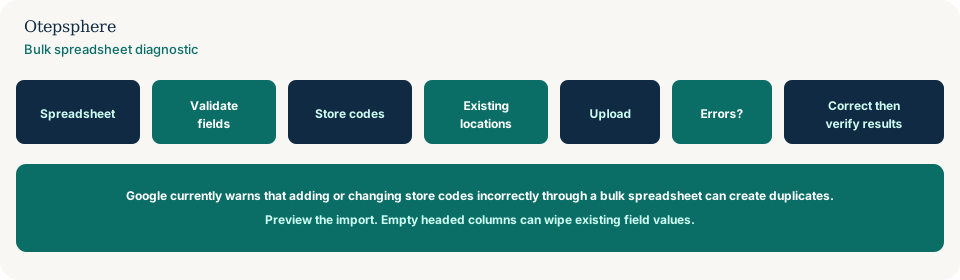
Bulk Upload QA Checklist
- Download current locations. Save a copy you will not edit.
- Confirm every existing location has a stable, unique store code.
- Format store-code and postal columns as text so leading zeros survive.
- Do not change store codes in the spreadsheet for existing locations.
- Do not leave empty values under headers you are not trying to clear.
- Preview: investigate every unexpected New row before Apply.
- After Apply, count locations and spot-check names, phones and addresses.
- Only then consider bulk verification.
What not to assume
Do not assume Apply is reversible. Do not assume Excel will preserve identifiers. Do not assume extra New locations are “Google copying us” rather than your file.
What not to do
Practical action plan
- Export locations and archive the file.
- Audit store codes offline.
- Edit a working copy with only the intended columns.
- Import, preview, download details, then apply or cancel.
- Reconcile public listings against the backup.
When professional help makes sense
Help is useful before a national hours or phone change, after a file already created extra branches, or when store codes were reinvented during an agency handover. It cannot undo Google’s review of new listings by itself. Take a dated export before the next file: why you should back up Local SEO data before large website or Business Profile changes.
Sources and further reading
- Google Business Profile Help: Import and update Business Profiles in bulk
- Google Business Profile Help: Add and manage store codes
- Google Business Profile Help: Create a bulk upload spreadsheet
- Google Business Profile Help: Understand your Business Profile status for bulk uploads
Bulk Business Profile updates creating duplicates or errors?
Otepsphere can review the location data and update structure before another large Business Profile import is performed.
Contact OtepspherePublished by Otepsphere
Published by Otepsphere, founded by Joseph Enmanuel. Learn about Otepsphere and its approach to local SEO.